


Many content creators record their livestreams so they can edit them later. For example, highlight clips for social medial. There’s a constraint though: the audio quality the livestreaming platforms will accept.
The sweet spot for streaming audio is 160 kbps (Kilobits per second). Some platforms will accept higher bitrates but 160 kbps is currently, the common denominator with reasonable expectations of reliability.
Fortunately for creators the audio quality you broadcast can be different to the audio quality you record. Using the channels feature in tools such as OBS allows you to segment your audio and treat each channel differently.
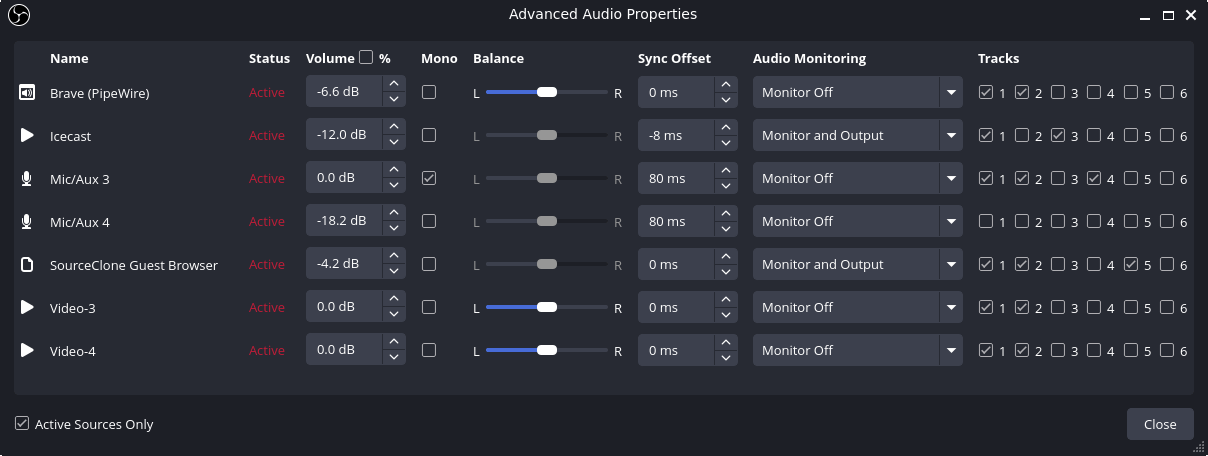
In this article I’ll show you how I do it. Have a look at this table depicting my audio channel configuration and the sources that are included within them:

You’ll see I have six discreet channels. I’ve assigned the first two as broadcast channels at 160kbps and the remaining four as recording channels at 320 kbps. This enables me to broadcast livestreams at the thresholds set by the social media platforms while also facilitating edits of pristine audio which has been nicely segmented after the broadcast has concluded.
Here’s how this is achieved in OBS. First, set the quality of the six channels:
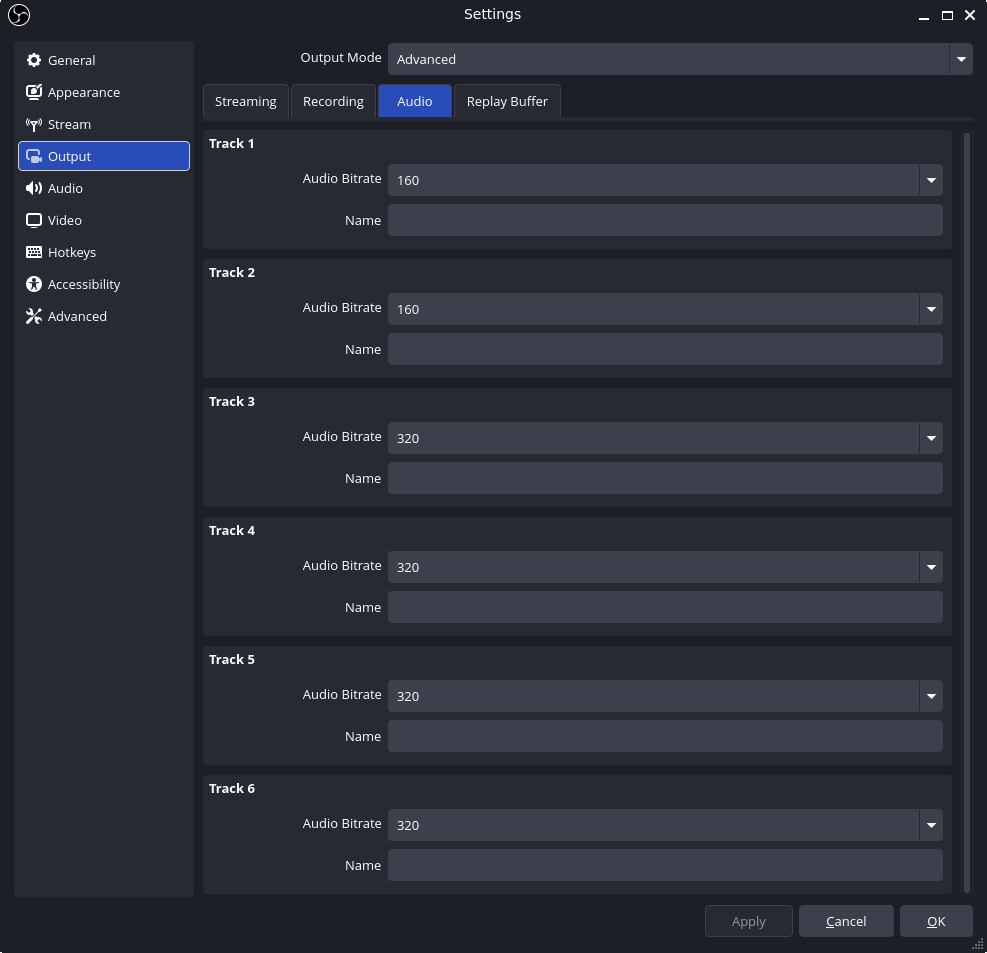
Next, assign audio sources to the appropriate channels:
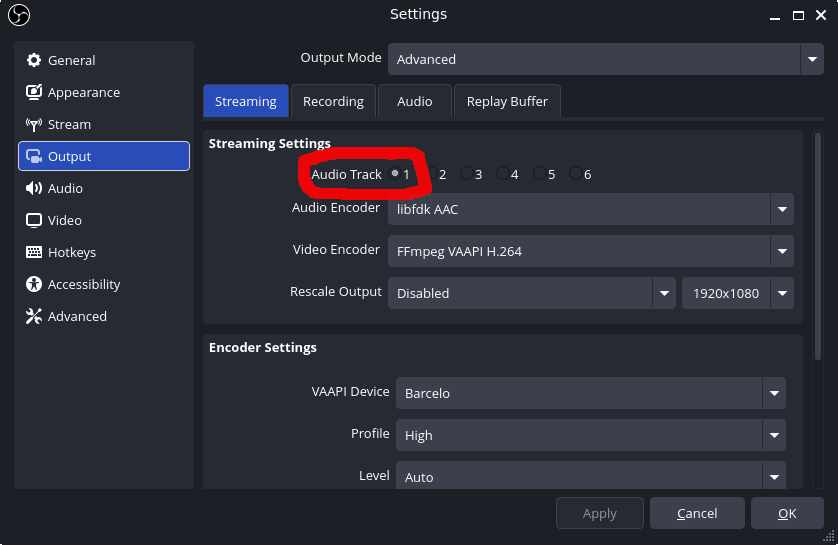
Then adjust your streaming setting to only send out the main mix:
..and your recording to all of the channels you wish to capture for subsequent editing:
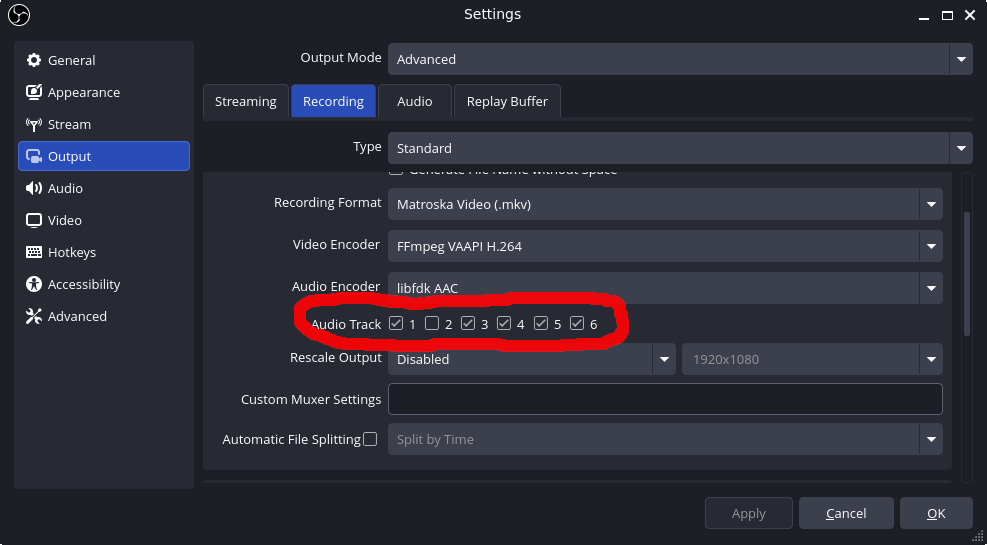
The end result is a recording of the livestream which includes six distinct channels along with the video channel.
My use-case is a little different because I broadcast in two video formats (landscape and portrait) each with its own main mix so I can play different music between them. Here’s how it all looks when I bring the recordings into my editing software, Davinci Resolve:
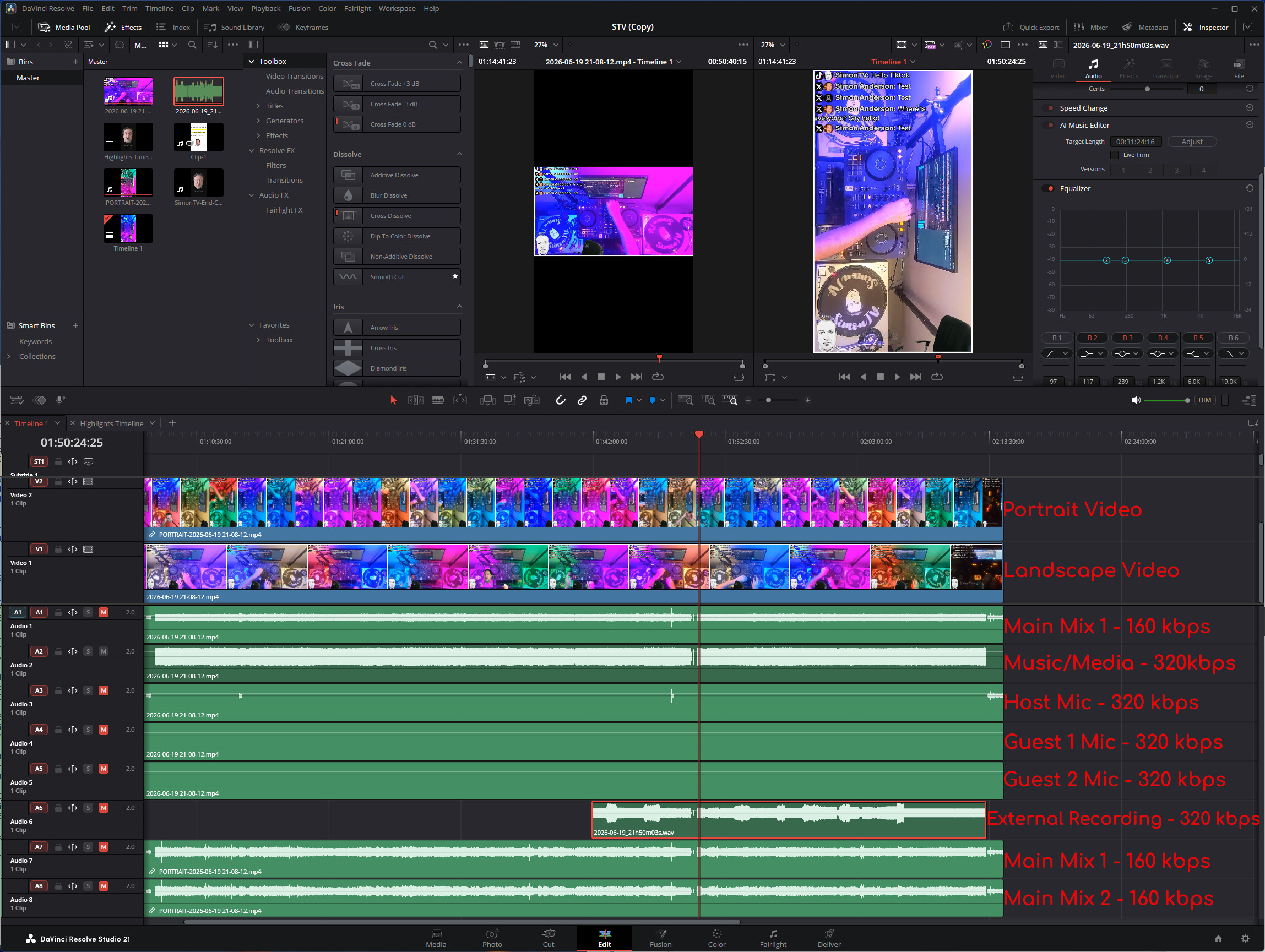
Recording the low quality Main Mix 1 in both portrait and landscape simply allows me to align the two video clips. Once the clips are aligned I dispose of those audio tracks because they’re lower quality. From there I can selectively mute the pristine audio channels to create a new, high definition main mix. If I forgot to turn the music off during the livestream before I started speaking for example, I can correct it here in the edit. Or if two guests spoke over one another I can mute one of them.
320 kbps is very high quality for a lossy format. Some would argue 256 kbps is ample as few listeners can distinguish a difference, and doing so would save on computation cycles and storage space. I argue why not? Most modern machines can keep up with audio recording at this level of detail comfortably and downscaling is a lot easier to achieve than upscaling.
In summary configuring channels in your broadcasting software facilitates quality improvements and greater flexibility in edit. While a lot of the recording ends up on the editing room floor it’s worth it for pristine final mixes.
-SRA. Auckland, 20/vi 2026.