


Introduction
Two years ago I wrote a couple of articles about producing live content, the hardware and the software I utilise. This article is an update to the latter, encapsulating the things I’ve learned and the changes I’ve introduced.
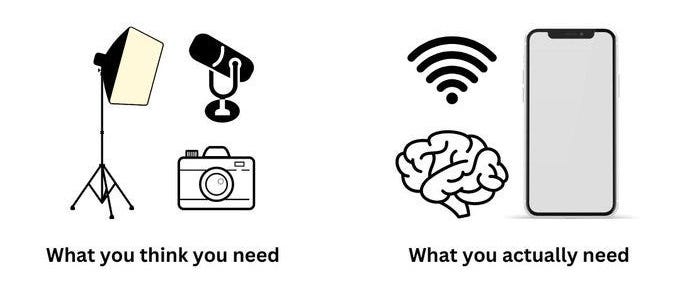
Before I commence I want to emphasise the essential truth depicted in the following diagram. Despite what I’m about to describe, all you really need is a phone and Internet connection, and a desire to produce live content.
I’m endeavouring to avoid getting too technical here, unlike the previous articles. The focus is a high-level overview of the tools I use, why, and how they work together. I’m writing it in the hope others might find it useful and encourage you to produce live content.
Objectives
My Podcasting solution is a bit more sophisticated than the image in the introduction but again I’d like to stress it’s beyond most people’s needs, and I’ll add that there are other approaches that are equally valid. Two years ago I outlined my objectives and they remain the same today:
My primary objective is to become a go-to for emerging news, by rapidly curating a variety of content as stories evolve and presenting it in a broadcast: live mixing and presenting news articles, video, cellphone footage, interviews with people on the ground, anything and everything. My secondary objectives are to be able to record interviews with a remote subject, talkback with the audience via voice, video and text, and record myself speaking to camera. I also want to integrate with other solutions and to simulcast to multiple locations concurrently including all of the major social media platforms. In short I need a feature complete broadcasting and recording studio in my home office and this is the software I used to build one.
Use Cases
Your uses cases might be different but hopefully they’re a subset or at least compatible with mine. A design objective was infrastructure flexibility to support whatever use cases you or I might dream up. Here are mine:
1. Piece to Camera
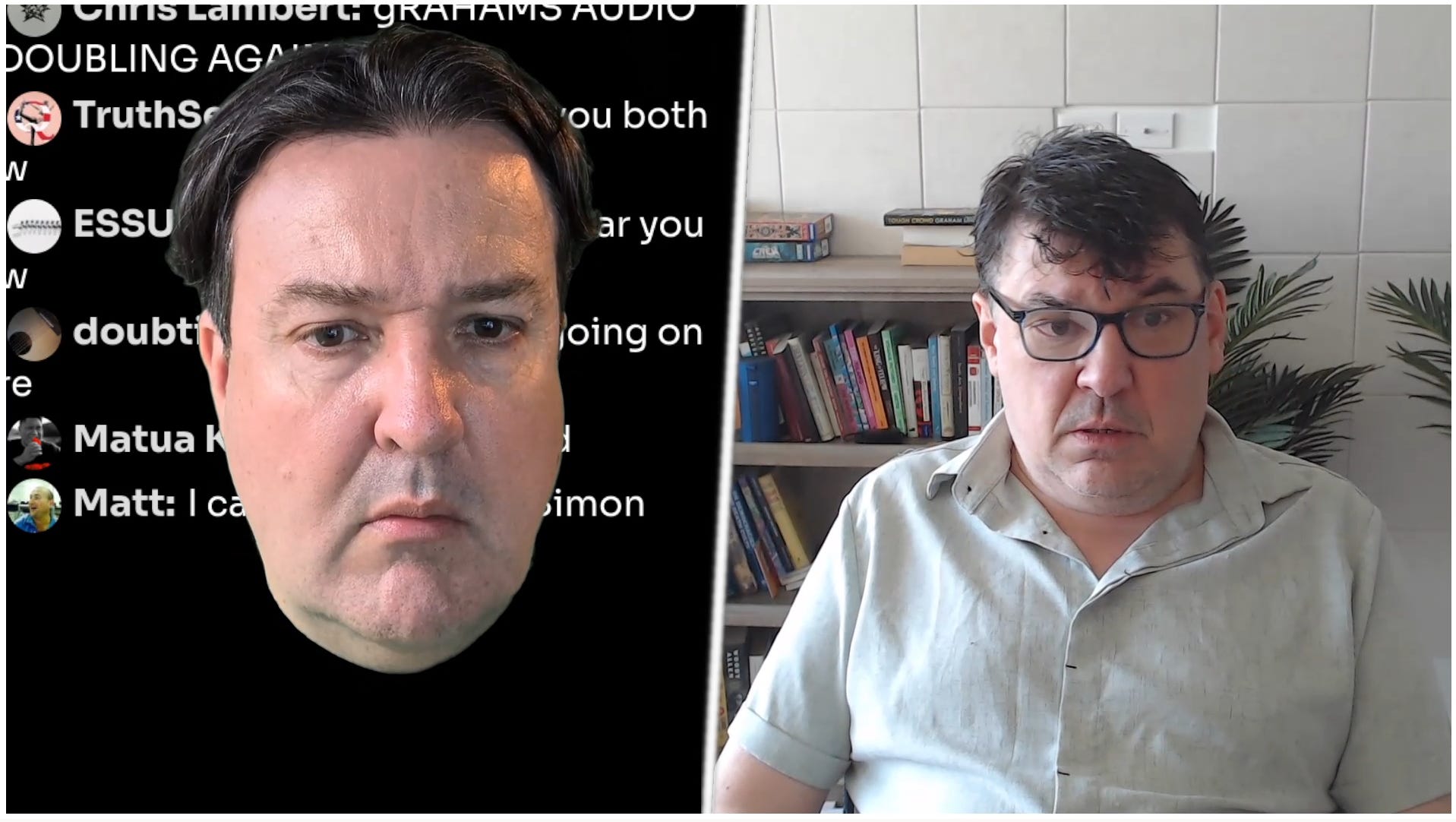
This is the standard format of most podcasts: a host presenting content, conducting interviews, interacting with the audience and so on. For me this is the primary use case because it enables my two-hour long live show SimonTV every Sunday.
2. In the Field
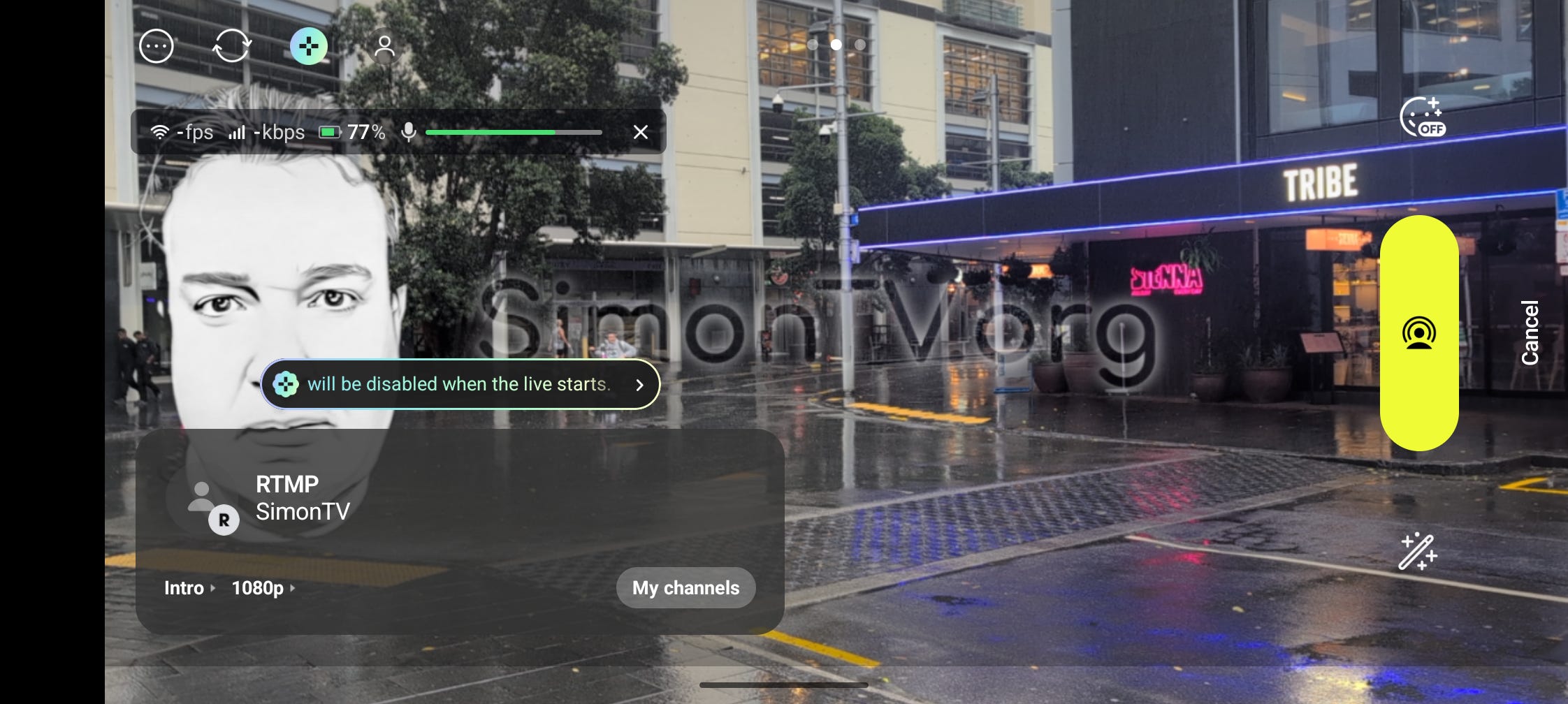
I’m most well-known for filming hyper-local news content with some of the footage I’ve captured in my vicinity going viral. Typically I’m recording this material on a 360° camera for subsequent publication of the interesting clips. From time-to-time I’m also livestreaming from my phone as well, for a direct angle in addition to the 360° overhead.
3. DJing
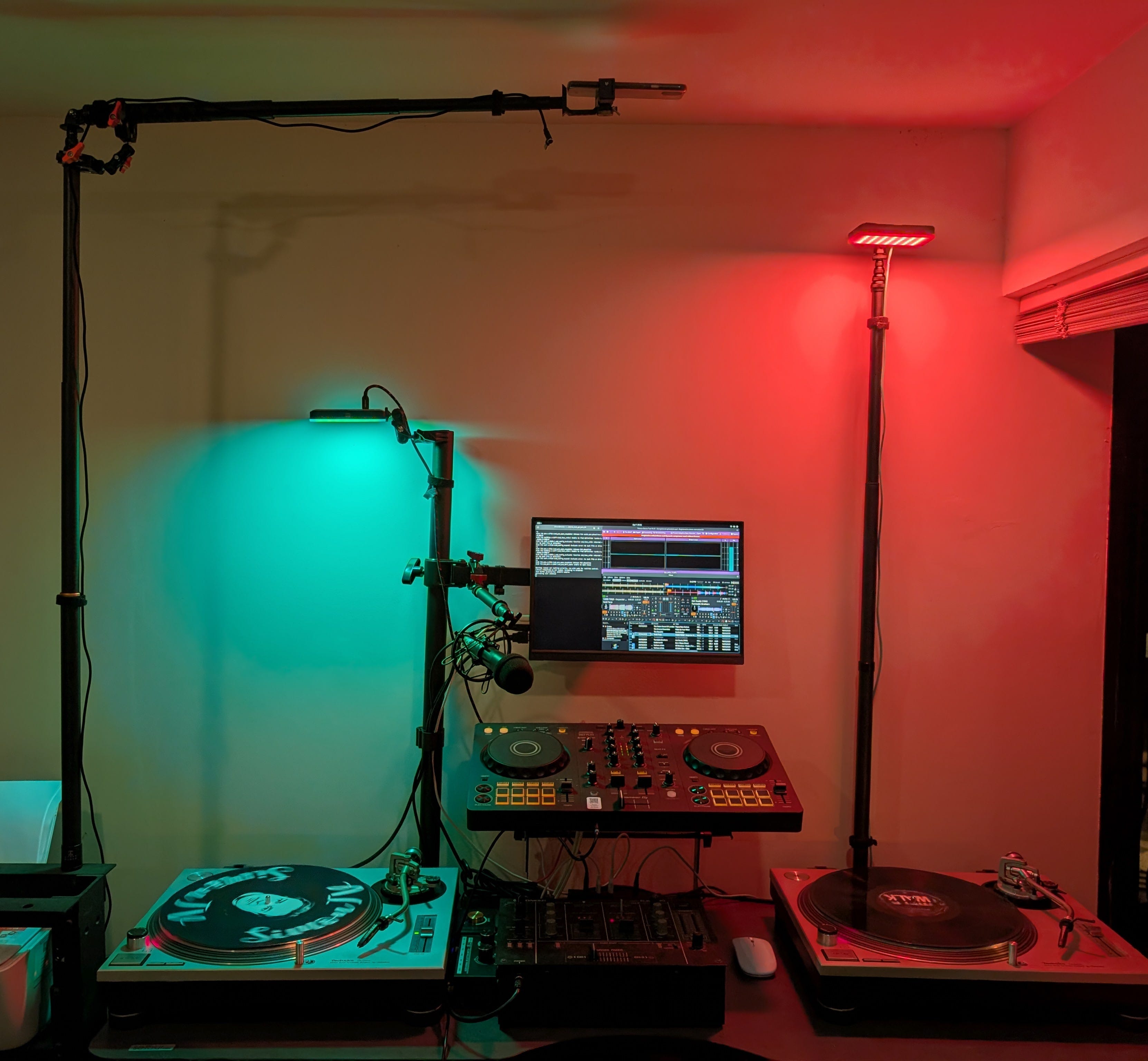
One of my hobbies is to mix music. It’s not something I’m awfully good at but it’s something I enjoy doing and enough people tune in to listen to make live streaming it worthwhile. Essentially this is the same as my Piece to Camera use-case comprising a separate set with an overhead camera.
The Software and Services
This high-level solution diagram depicts the components I utilise to podcast and distribute content and it’s all you really need to see for the purposes of this article.
I’ll briefly touch on the components I utilise in pre- and post-production also shown here, they’re the three components not connected by the red lines of the data flows.
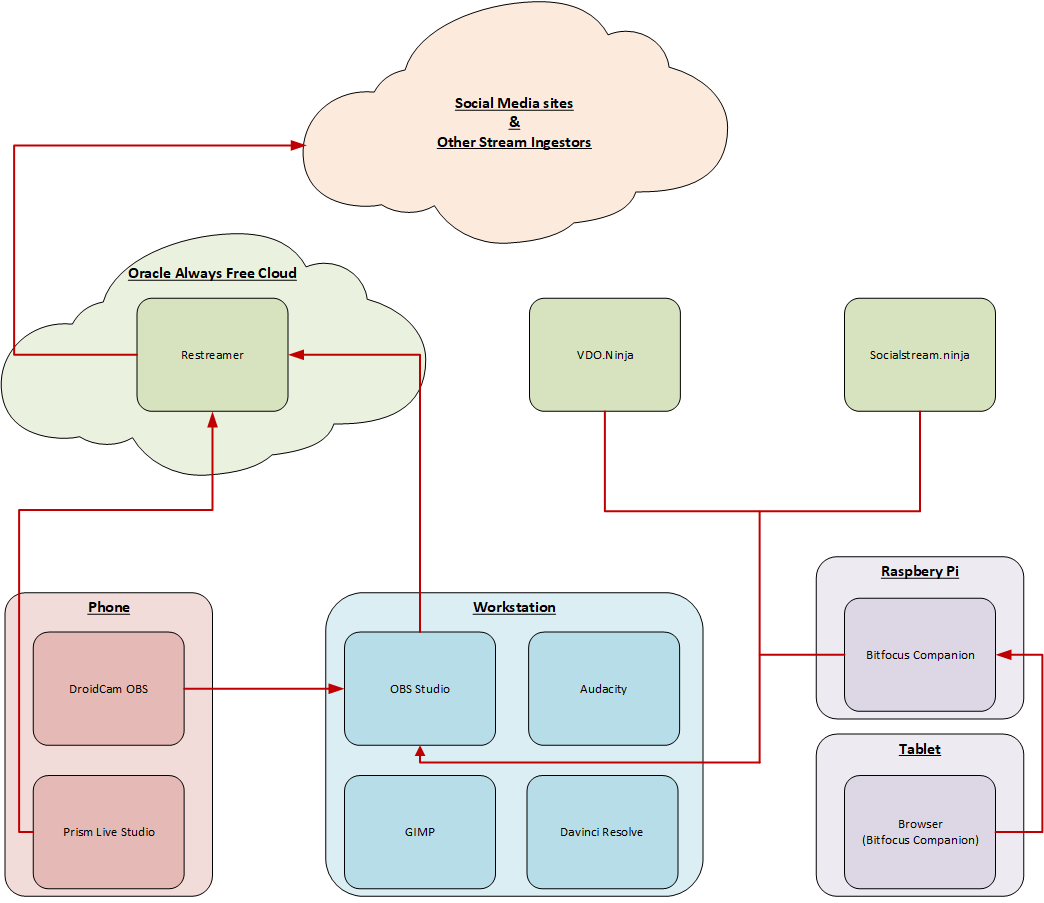
Broadcasting
OBS Studio cross-platform broadcasting and recording software
PRISM Live Studio cross-platform cellphone video recording and streaming app
DroidCam OBS cross-platform cellphone camera integration app
Services
Bitfocus Companion live production control interface
VDO.Ninja WebRTC audio/video integration platform
Socialstream.Ninja social media text chat consolidation and presentation tool
Reastreamer broadcast disseminator
Oracle Always Free cloud hosting service
Pre & Post Production
Davinci Resolve cross-platform audio/video editor
GIMP cross-platform graphics editor
Audacity cross-platform audio editor and recorder
Broadcasting Components
These are the three essential applications to livestream from your desk or out in the field on your phone. Well two really, and another app to use your phone as a camera.
OBS Studio
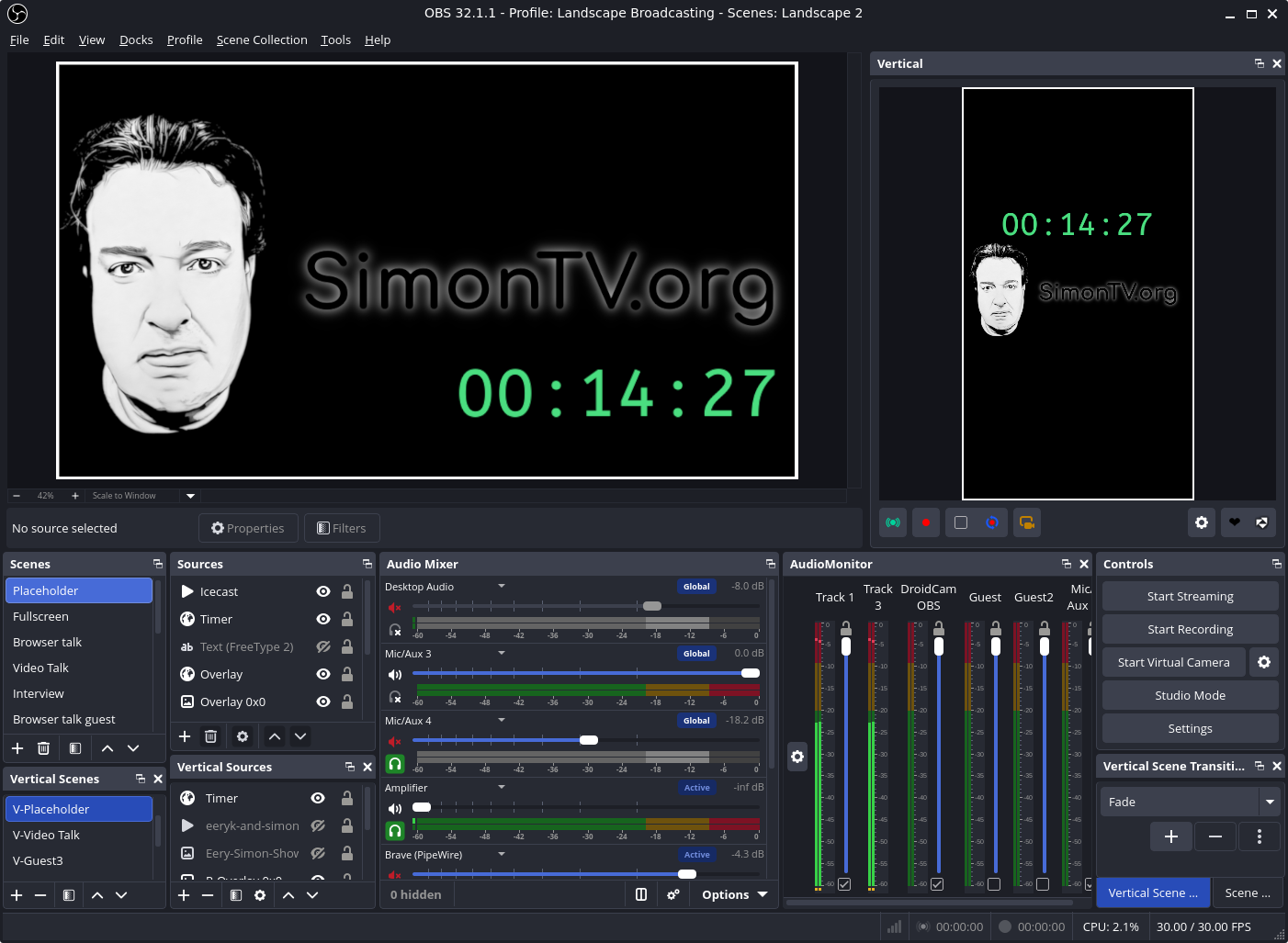
OBS is the nerve centre of desktop podcasting. It’s the control interface which takes input from hardware components like microphones and cameras, mixes it with your digital content and streams an output from your machine to the Internet.
In my case two concurrent streams, one in landscape mode and one in portrait mode to account for user preferences on the various social media platforms. More about that here.
OBS has a vast array of third-party plugins and filters, and the system itself is infinitely configurable. If you’ll allow me to delve into the technical just a bit, the two pieces of information I wish I’d known when I started out are to prefer HLS streams to RTMP wherever possible, and to broadcast with these settings:
Resolution: 1920x1080 & 1080x1920Encoder: H.264 (hardware rather than software)Rate control: CBRBitrate: 6000 kbpsKeyframe: 2 secondsB frames: 3Audio: AAC (bitrate 160, sample rate 48 Khz)
DroidCam OBS
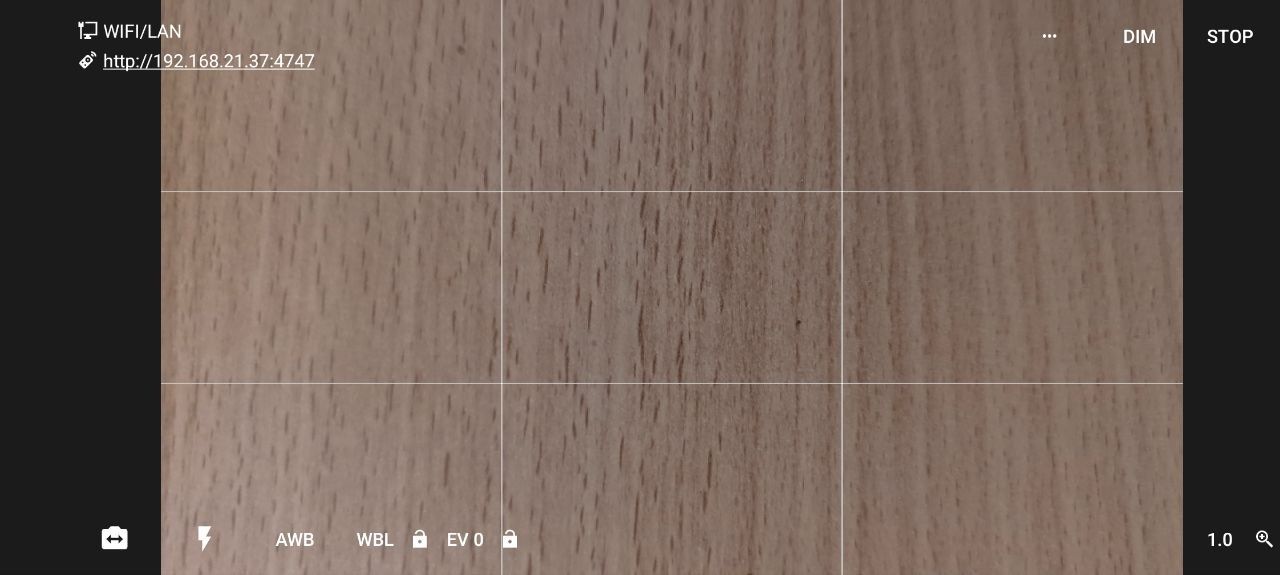
You probably need a camera for your podcast pointed at yourself so you can host the show. Most digital cameras can be connected to your computer so OBS can capture the video input but if you don’t have one, a cellphone camera is more than adequate. They tend to produce a better picture than a webcam and the settings are more configurable.
This is where the DroidCam OBS app for Android and iPhone comes in handy. It enables OBS Studio to grab video from your cellphone’s camera and has rudimentary controls enabling you to adjust the settings from your computer. This is handy to have when it’s facing you, and you’re looking at the lens on the back of your phone instead of the phone’s screen.
PRISM LIVE Studio
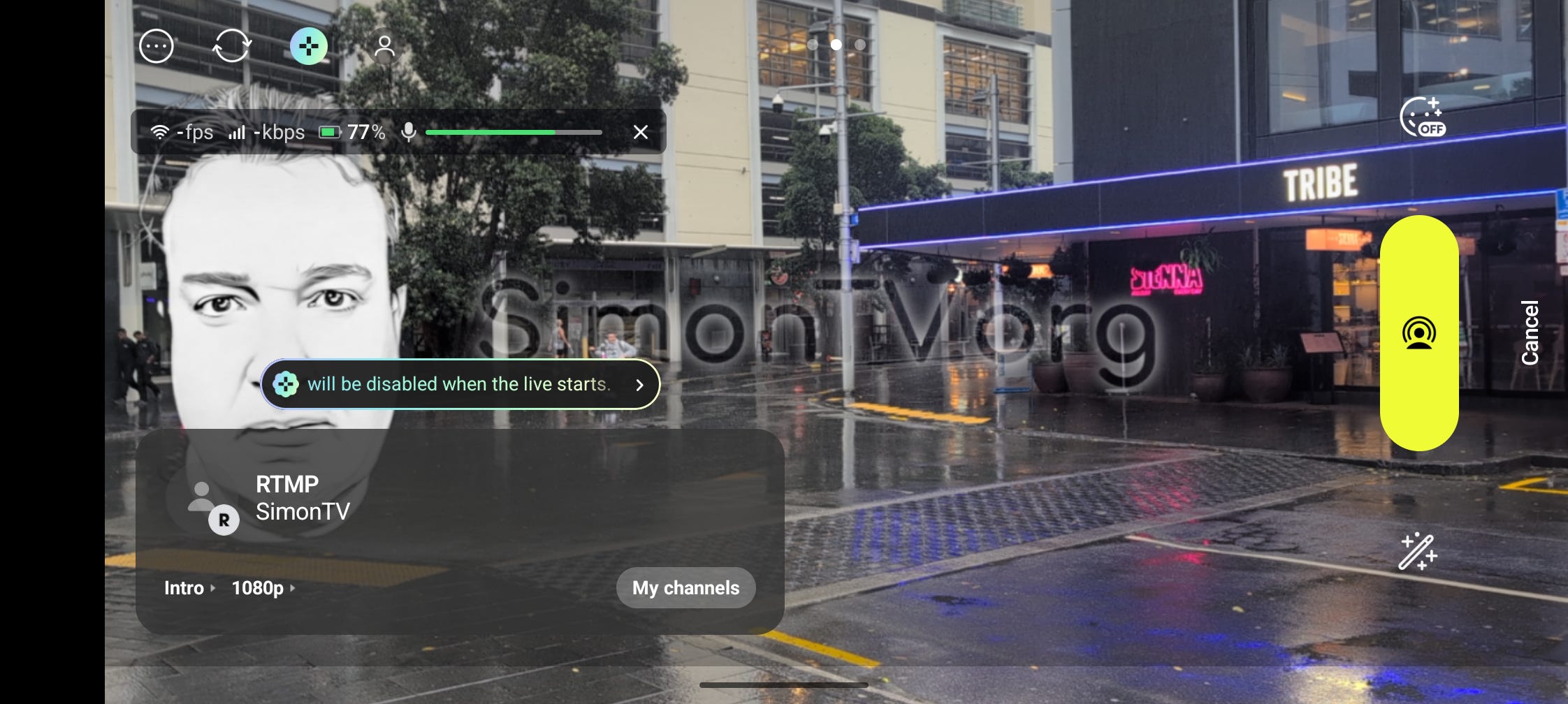
As OBS Studio is to your workstation, so PRISM LIVE Studio is to your phone. It enables you to capture live content when you’re on the move and mix it with digital assets similarly to how you would in OBS Studio, and to broadcast the stream onto the Internet. It’s not as feature complete as OBS Studio of course but it is perfect for the field. I use it to embed my watermark on livestreams (though I shrink it down smaller than the example in this picture.)
Services
These are the ancillary services I use to operate my livestreams. There are commercial subscription services offering some of these services and the social media platforms offer some themselves. None of these are strictly necessary: if your goal is to livestream to a single platform you probably don’t need any of this. My livestreams go out to nine or ten concurrently so my objective is to amalgamate across all of them.
Bitfocus Companion
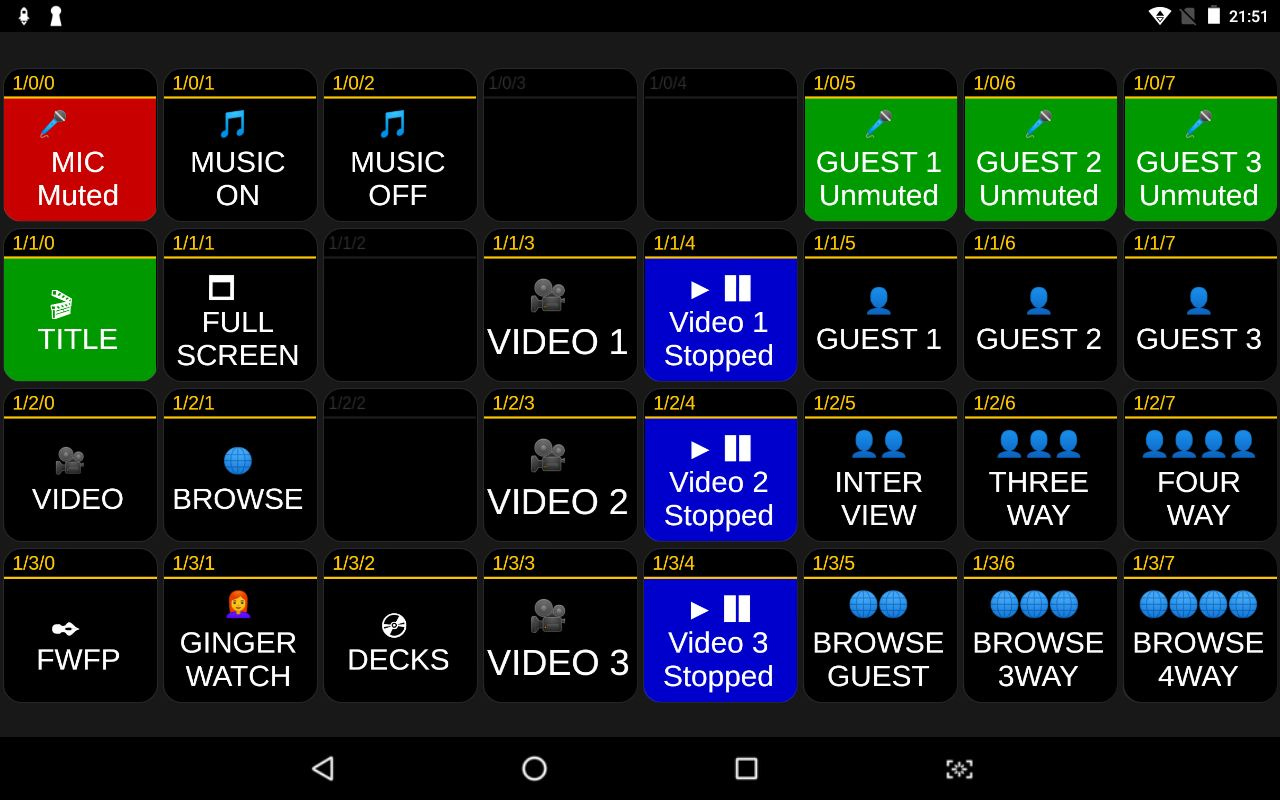
There’s a class of hardware devices called Streamdecks, essentially programmable keyboard-type devices many podcasters use to provide a control interface, like a consumer version of the video switcher one might find in a television studio. Bitfocus Companion is a client/server solution to provide the configuration for such a device. Fortunately a hardware device isn’t strictly necessary: I just use an old Android tablet.
All of the buttons depicted here are custom-made links to functions inside my version of OBS Studio. I can (and do) perform each of these functions inside OBS Studio itself but it’s nice to have a simplified interface sitting on a separate screen directly in front of me for the important stuff. Anyone who’s watched my live shows knows I have an annoying habit I just can’t break of speaking while my microphone is muted. The strategically placed big red button helps to avoid that.
VDO.Ninja
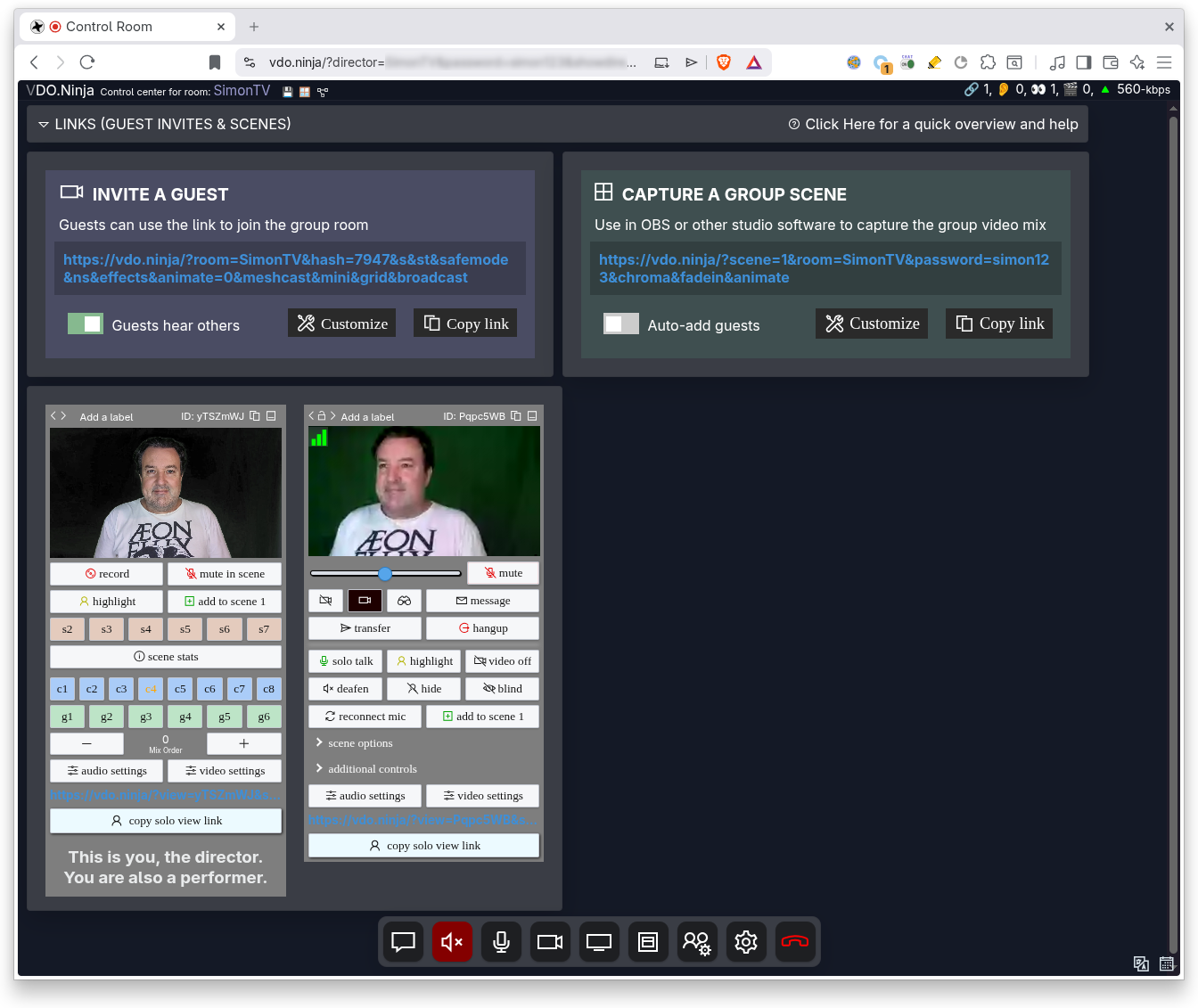
WebRTC has emerged as the default technology for sharing audio/video peer-to-peer, such as video-conferencing. It’s widely supported by most devices and operating systems and critically for usability, most web browsers. I use WebRTC to conduct interviews with remote guests and to run the call-in for those SimonTV episodes where I do TalkBack with the audience.
VDO.Ninja is simply a handy control interface over the top of WebRTC which allows you to adjust the behaviour of the audio-visual link and present it so you can pull it into OBS Studio. I use it as a Green Room, where I can communicate with guests directly before, during and after their appearance on the show off-camera from the actual broadcast itself.
SocialStream.Ninja
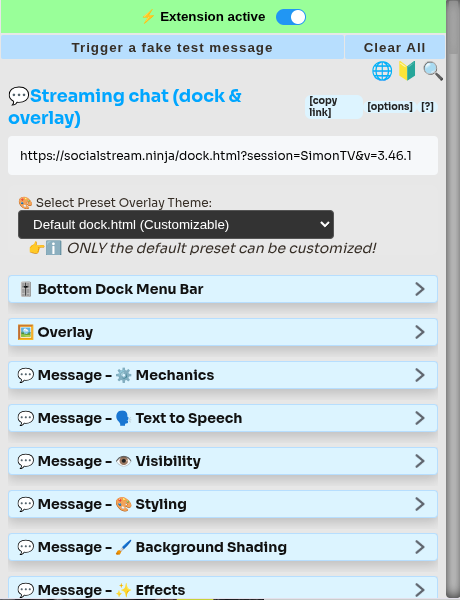
SocialStream.Ninja is another handy tool from the same developer as VDO.Ninja, Steve Seguin. It’s a chat aggregator which listens to the text chat across all of the social media platforms and consolidates them into an interface which enables the moderator to manage comments as they come in. It also allows me to bring them into OBS Studio so I can display the comments on screen to the audience no matter which platform they’re watching on.
Socialstream.Ninja exists as an app but I just use the browser plugin.
Restreamer
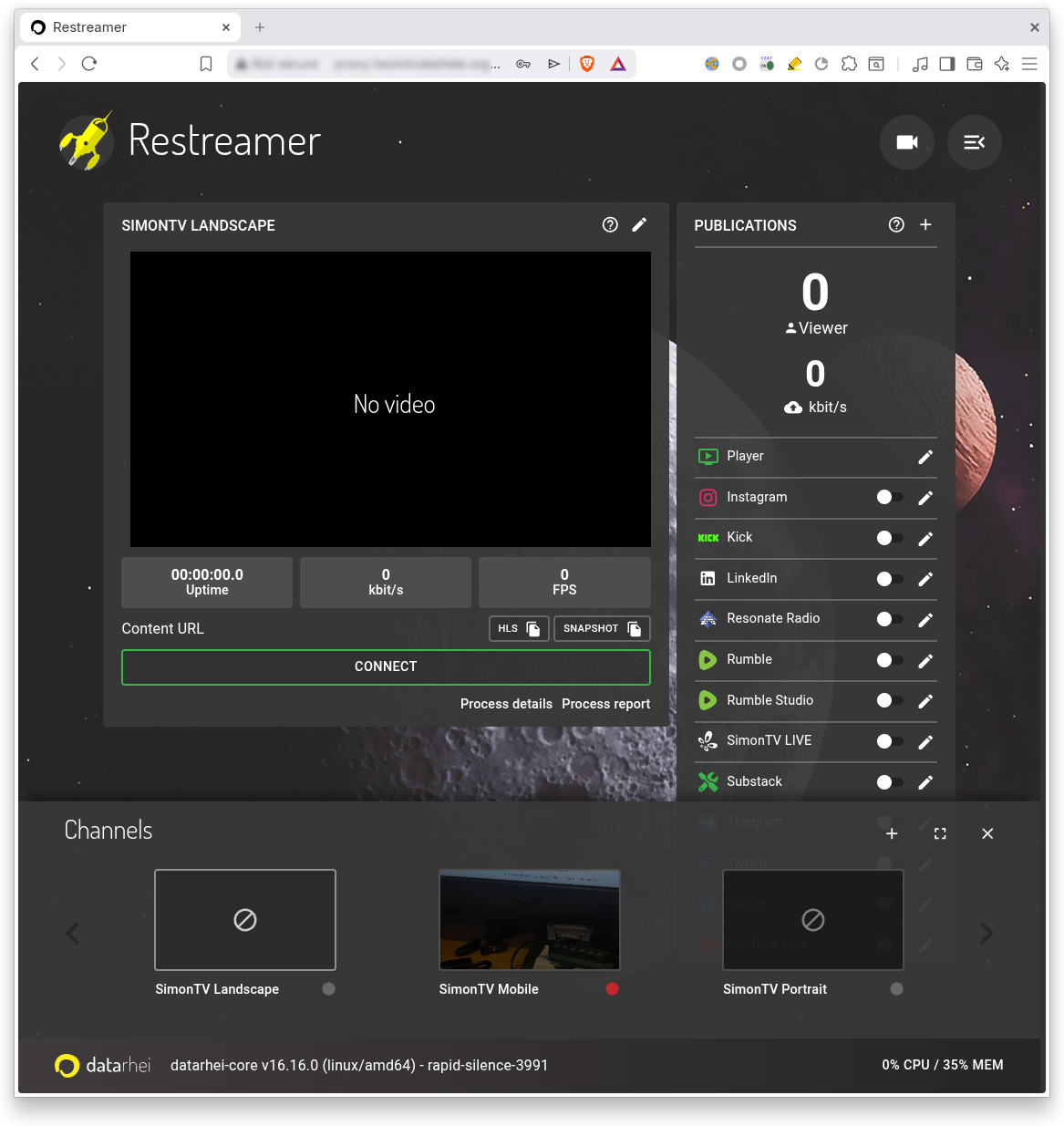
Restreamer is a streaming server. Rather than livestreaming directly to one social media platform I send feeds to Restreamer to distribute to many, saving on the bandwidth overhead of my own Internet connection. It has channels, which enables me to send different content to different destinations.
Oracle Cloud - Always Free

Restreamer sits on a virtual server in Oracle’s Cloud Infrastructure (OCI), alongside two other virtual servers hosting a variety of services and some of my websites, including the Talk.SimonTV.org interface to VDO.Ninja and the LIVE.SimonTV.org site for those who want to watch my live content directly on the web.
All of it runs in Oracle’s “Always Free” Tier which comprises enough compute to run three servers, each with a 500MB/s fibre connection, at zero cost. My OCI tenancy is physically located on the U.S. west coast on the main trunk lines of the Internet giving my livestreamers blazingly fast access to the social media platforms.
Pre & Post Production
This section describes the ancillary tools I use in pre-production and post-production. None are useful during the livestreams themselves but they are useful for creating the media assets I use during my livestreams and repurposing a recording of the broadcast for subsequent publication. Tasks such as producing highlight clips and discrete segments.
Davinci Resolve
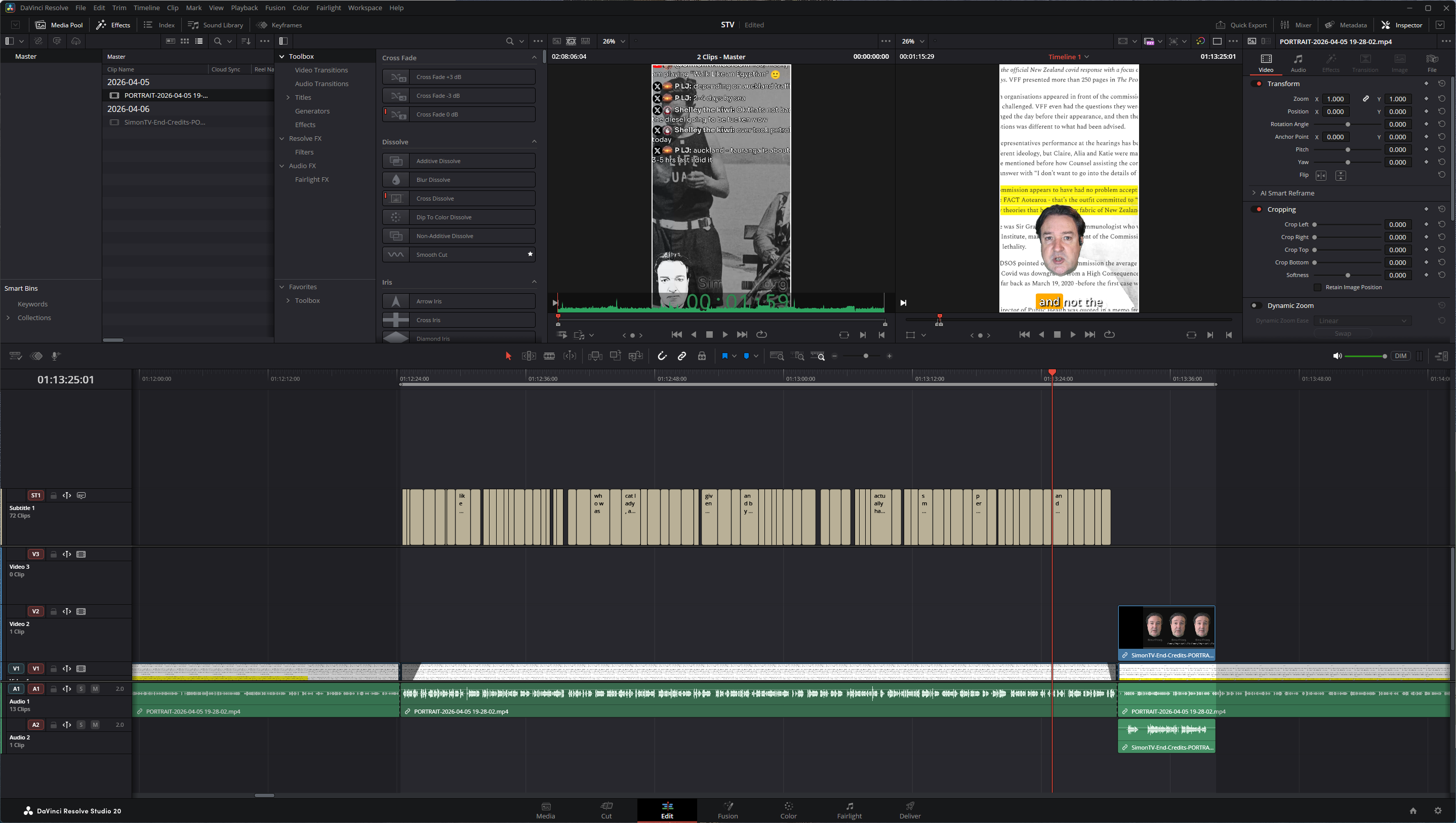
Davinci Resolve is a professional colour grading, DAW and video editor, an incredibly versatile tool suitable for Hollywood films. In pre-production I use it for creating title sequences, introductions and animations. In post-production I use it to create subtitled clips amongst a plethora of other things.
I used a variety of video editors before moving up to Resolve. While tools like KDENLive are perfectly serviceable (and I keep it around for quick jobs and rough cuts) Davinci Resolve opened up an entire new world of capabilities.
Gimp

The GNU Image Manipulation Program is an open source alternative to image editing tools like Adobe Photoshop. I use it for creating still assets and the graphics I use inside OBS Studio scenes.
Audacity

Audacity is an audio recording and editing tool. Despite its dated and tired user interface it remains a powerful tool for processing audio. I use it in pre-production to record voice-overs.
Davinci Resolve includes an professional DAW (Digital Audio Workstation) which is suitable for full-on studio recording. While it’s handy to have a DAW integrated with a video editor Audacity is much more suitable for editing audio only, quick edits and recording on the fly.
Summary
Every tool I’ve described here is open source and free with the exception of Davinci Resolve which is proprietary with a free version. It really is the case that you can build yourself a fully-featured broadcasting capability for next to nothing with the added bonus that you control it, you’re not beholden to vendors or subscription services, and can modify it to suit your individual purposes.
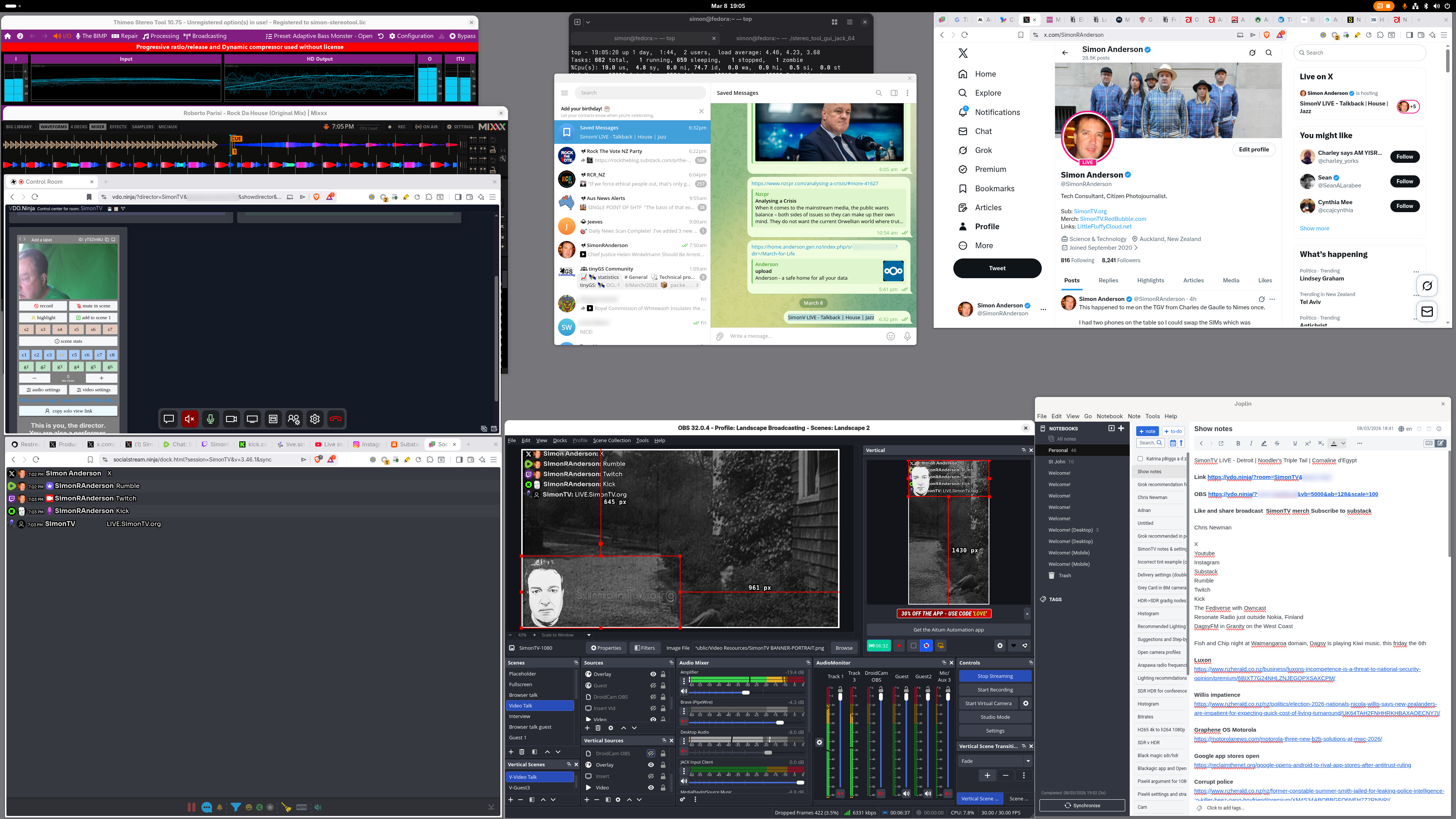
I thought to leave you with the screenshot below to highlight the importance of content. When I perform a SimonTV livestream I’m both the producer and the presenter. This picture shows everything I have in front of me to run the show, except the tablet sitting on my desk displaying the Bitfocus Companion buttons.
With the exception of OBS Studio everything depicted here is the mixed media content I’m using during the show. You and your content are the why, the aspect that truly matters. This article merely describes the how.
-SRA. Auckland, 9/iv 2026.