


The Blackmagic camera app is a best-of-breed camera for phones with the added advantage that it plugs into the rest of the Blackmagic ecosystem, including Davinci Resolve.
A handy feature is the remote control functionality. This allows one Android device to control Blackmagic on other Android devices: adjust the settings, start/stop recording and so on. This is very useful if -like me- you’re recording a podcast with three camera angles.
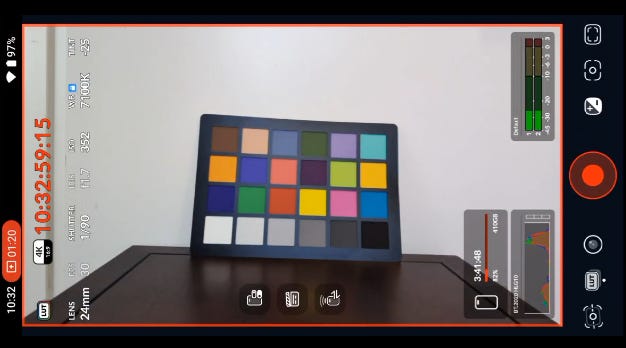
A constraint though is that BlackMagic camera is only available for a limited range of flagship Android phones and in theory, the remote control is only possible between supported devices. This is inconvenient, as utilising an older unsupported phone or tablet would obviate the need to purchase an expensive supported device merely to perform the remote control function.
This is a problem many Blackmagic camera app users have encountered and it seems no-one has documented a workaround. I’ve concocted a working solution for the unsupported Pixel 4XL which I’ll describe here:
Install LineageOS version 23 (Android 16) as detailed here
Make sure to install the MindTheGapps Google Apps package as detailed here.
Blackmagic camera can’t be installed from the Playstore because the Pixel 4XL is listed as incompatible…
…so instead, install the APK Mirror app from the Google Playstore…
…then download the BlackMagic camera app bundle from the APK Mirror site onto the Pixel 4XL…
…then install the downloaded bundle onto the Pixel 4XL using the APK Mirror app.
Configure Blackmagic camera app as normal. Enable all of the permissions it asks for.
In the Blackmagic camera settings enabled Remote Camera Control and set the Use This Phone As option to Controller.
Return to the camera view. Click the three vertical buttons on the left to bring up the menu and select the remote camera icon. If your supported Android devices are connected to the same WiFi network and have Use This Phone As set to Remote Camera they will appear in the menu. Click the toggle to connect.